
Keep Your Linux Home Clean Without Symlink By Using Boxxy
Keeping your Linux home directory clean can be quite the hassle. No one wants a cluttered home folder filled with extraneous files and directories. A perfect example of this annoyance is when software decides to place one of its working directories in your home folder, leaving you scratching your head as to how to move it without causing issues. In this post, we'll discuss how using Boxxy can help you keep your Linux home clean without resorting to symlinks.
One good example
Let's take the example of using Publii, the static site generator i use for this blog post. During site creation, Publii places its working directory in your home folder. You can't change its location (or i didn't find how) and it's cluttering my home.
Boxxy saves the day
To address this issue without resorting to symlinks, we'll use the software Boxxy. Here's how its author introduce it:
Boxxy (case-sensitive) is a tool for boxing up misbehaving Linux applications and forcing them to put their files and directories in the right place, without symlinks!
After installing Boxxy you need to provide it some configuration. Here's an example for my Publii issue :
# ~/.config/boxxy/boxxy.yaml
rules:
- name: "Box Publii"
  target: "~/Publii"
  rewrite: "~/.config/Publii_home"
Now if i launch boxxy with boxxy publii, the Publii working directory and its content will be automatically redirected to .config/Publii_home.
Note that while the software is running the directory will still be temporary present and boxxy will clean it up when the software closes.
Bonus content: A script to use boxxy with your desktop shortcuts
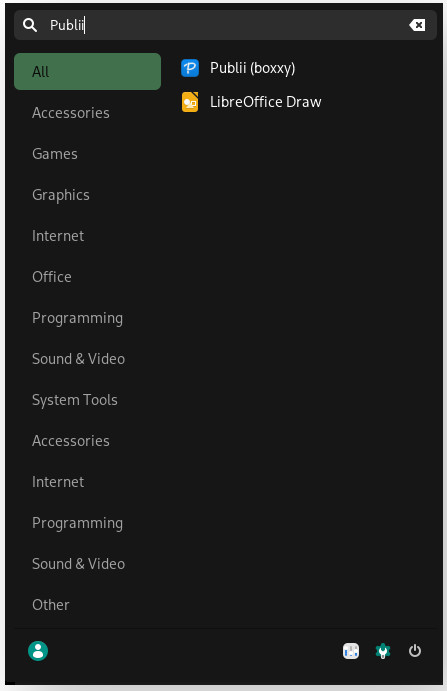
I created a little bash script for my and yours convenience that lets you select one of your menu shortcut, disable it and create a new one that use boxxy and put "boxxy" at the end of its name.
#!/bin/bash

# Check if "boxxy" command is in PATH
if ! command -v boxxy &> /dev/null; then
    echo "Error: 'boxxy' command not found in PATH. Please make sure it is installed and accessible."
    exit 1
fi

# Check if "~/.local/share/applications/" exists
if [ ! -d ~/.local/share/applications/ ]; then
    read -p "~/.local/share/applications/ directory does not exist. Do you want to create it? (y/n): " choice
    case "$choice" in
        y|Y ) mkdir -p ~/.local/share/applications/ ;;
        n|N ) echo "Exiting script."; exit ;;
        * ) echo "Invalid choice. Exiting script."; exit ;;
    esac
fi

# Function to display menu and get user selection
select_file() {
    echo "Select a .desktop file:"
    select file in /usr/share/applications/*.desktop; do
        if [ -n "$file" ]; then
            echo "You selected: $file"
            break
        else
            echo "Invalid selection. Please try again."
        fi
    done
}

# Main function
main() {
    select_file
    # Placeholder for actions on the selected file
    copy_file "$file"
}

# Function to copy file and perform required actions
copy_file() {
    selected_file="$1"
    filename=$(basename "$selected_file")
    cp "$selected_file" ~/.local/share/applications/"$filename"
    echo "NoDisplay=true" >> ~/.local/share/applications/"$filename"
    cp "$selected_file" ~/.local/share/applications/boxxy_"$filename"
    sed -i 's/^Exec=/Exec=boxxy /' ~/.local/share/applications/boxxy_"$filename"
    sed -i '/^Name=/ s/$/ (boxxy)/' ~/.local/share/applications/boxxy_"$filename"
    echo "Actions completed. Files copied to ~/.local/share/applications."
}

# Call the main function
main
Enjoy your uncluttered home !