
Protect Your Ears on Linux: Enjoying Movies and Livestreams Without Pain
Today we're going to discuss a common issue that many of us face when enjoying our favorite movies or live streams - blowing out our eardrums due to excessive audio levels.
When watching movies or live streams, we often encounter sudden loud sounds that can be jarring or even painful for our ears. To combat this issue, we can utilize two essential audio processing tools - an Upward Compressor and a Multiband Compressor. These tools work together to maintain consistent audio levels by gently reducing the volume of loud sounds without compromising the overall audio quality.
An Upward Compressor works by analyzing the audio signal's dynamics and applying gentle compression to increase the average volume level of the signal. This helps prevent sudden volume spikes while maintaining a balanced soundscape. A Multiband Compressor takes this process one step further by splitting the audio signal into multiple frequency bands and applying individual compression settings to each band. This allows for even more precise control over dynamic range and ensures that no frequency range overwhelms the others.
It's the same process of dynamic loudness equalization i explained in my other post, but dynamically with all your audio (with easyeffects) or for a video (with mpv).
Using EasyEffects for Audio Compression
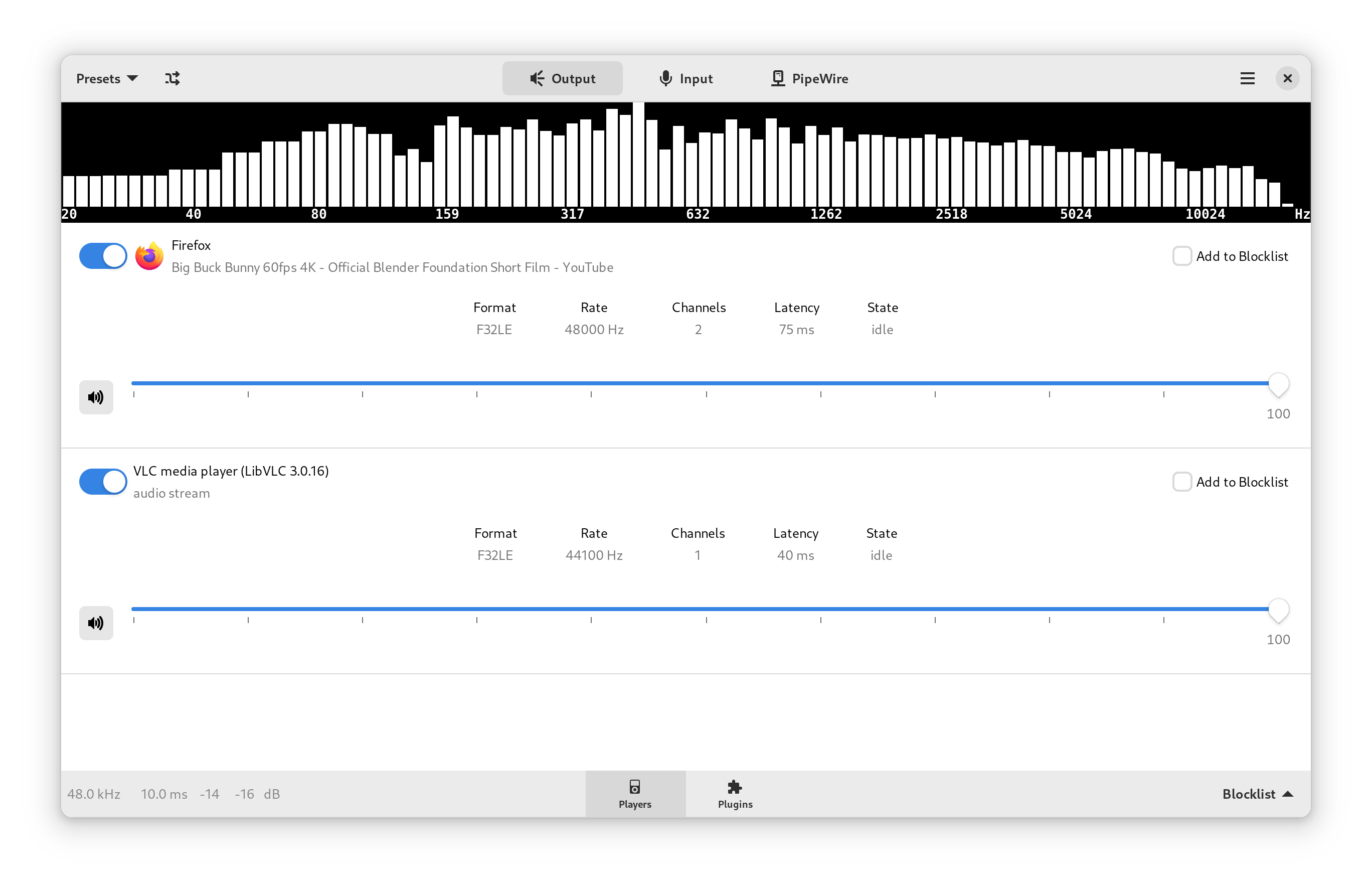
EasyEffects is a user-friendly audio processing application that provides a range of tools for enhancing and manipulating audio.
By applying compressors, you can effectively prevent sudden spikes in audio volume without sacrificing the overall sound quality. This means no more cringing when explosions or dramatic music cues hit during your favorite movie scenes, youtube video or watching livestream.
As a side note, the software functions effectively even in during situations like sudden loud interferences in a video conference or improper microphone setup on Discord (I'm looking at you Paperbird è_é ).
If your linux distribution is not using Pipewire but PulseAudio, you must choose the previous version of EasyEffects called PulseEffect.
- First, install EasyEffects,
sudo apt install easyeffects - You can customize your preset according to your preferences or discover one online. In my case, I chose this particular one : Digitalone1 / EasyEffects-Presets. Then just put the config file in
~/.config/easyeffects/outputand you're ready to go. - Finally in the main application view you can exclude some apps from the audio processing, by default Easyeffects process all your outputs.
There's a minor drawback when using EasyEffects; it introduces slight video/audio delay that might be noticeable at times. Restarting EasyEffects may alleviate the issue, but achieving flawless real-time performance requires a real-time kernel.
Alternative Method for video file
You can achieve roughly the same in mpv with the following. Add a shortcut enabling a compressor filter by adding the following to your .config/mpv/input.conf.
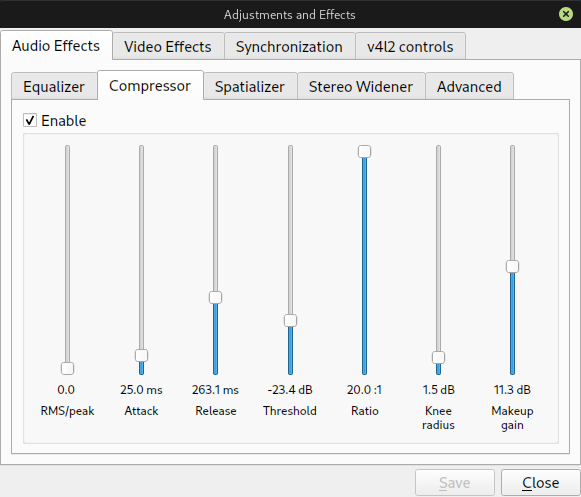
F1 af toggle "acompressor=ratio=4,loudnorm"For VLC the dynamic compressor is located in Tools > Effects and Filters > Audio Effects > Compressor. You can see my settings right below :
By incorporating these audio processing tools and techniques into your media consumption habits, you can ensure that your ears remain protected from excessive audio levels while still enjoying all your favorite films, live streams, and communication platforms. Happy listening!